
Colour your kubectl output and type less
If you work with Kubernetes on the command line using kubectl, you will appreciate kubecolor.
Kubecolor is a small utility that adds colour to your kubectl output, making it easier to read and understand at a glance.
Normally when you run a kubectl command, you get back a wall of boring grey text.
With kubecolor, you get informative, colourful output like this:
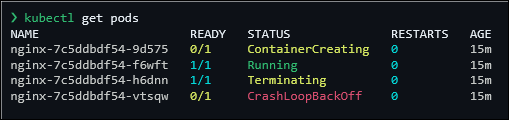
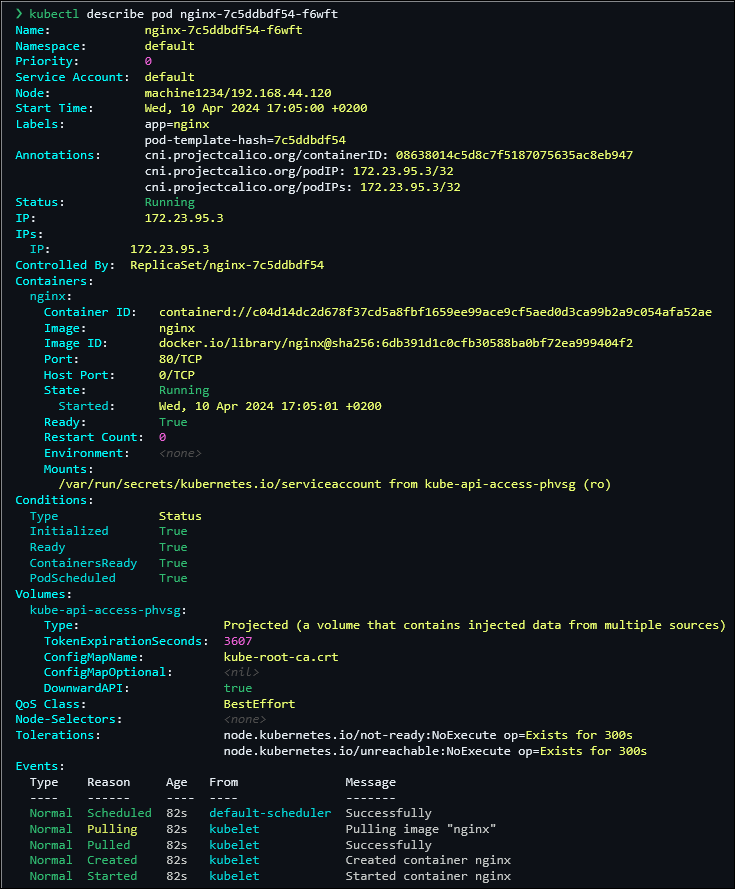
I especially appreciate how errors are highlighted red, making them easy to spot.
Kubecolor installation
Kubecolor is cross-platform, easy to install, and has great installation documentation.
For example, installing it on Windows is as easy as running:
winget install --id Kubecolor.kubecolor
Setup to use kubecolor by default
The Kubecolor documentation also has great setup instructions for many shells, including PowerShell.
You can typically set up an alias so that anytime you run kubectl, it automatically uses kubecolor.
Better yet, instead of having to type kubectl every time, just type k instead!
Here’s how you can set that up in PowerShell:
Set-Alias -Name kubectl -Value kubecolor
Set-Alias -Name k -Value kubectl
Now you can run k get pods and see colourful output by default.
Setup kubectl command and parameter completions
The documentation also has instructions for setting up kubectl completions in many shells, which is super handy.
This is how it can be done in PowerShell:
kubectl completion powershell | Out-String | Invoke-Expression
Register-ArgumentCompleter -CommandName 'k','kubectl','kubecolor' -ScriptBlock $__kubectlCompleterBlock
Now you can type k get p and hit Tab and it will auto-complete.
Continue hitting Tab to cycle through the available options, or use Ctrl + Space to see all available options.
This works for both command names and parameter values, making it easier to discover kubectl commands and custom resources in your cluster.
Try typing each of the following and hitting Ctrl + Space.
Note the trailing space at the end of each:
kk getk get pods -n
Automatic setup with PowerShell profile
You don’t want to have to run the setup commands every time you open PowerShell though. You can use your PowerShell profile to run the code automatically every time PowerShell starts.
In PowerShell, you can find the path to your PowerShell profile by running:
$PROFILE
To open the file in Notepad, run:
notepad $PROFILE
Create the file if it doesn’t exist, and add the following code to it:
# If kubecolor is installed, alias kubectl to use it.
if (Get-Command kubecolor -ErrorAction SilentlyContinue)
{
  Set-Alias -Name kubectl -Value kubecolor
}

# If kubectl is installed, register the argument completions for kubectl and its aliases.
if (Get-Command kubectl -ErrorAction SilentlyContinue)
{
  Set-Alias -Name k -Value kubectl
  kubectl completion powershell | Out-String | Invoke-Expression
  Register-ArgumentCompleter -CommandName 'k','kubectl','kubecolor' -ScriptBlock $__kubectlCompleterBlock
}
That’s it!
To test it out, open a new PowerShell window and run k version or k get pods.
You should see beautiful, colourful output.
Colour themes
Kubecolor comes with several built-in colour themes, including light and dark themes. It even allows you to create your own custom themes. See the documentation for more info.
Conclusion
So now you get beautiful, colourful kubectl output that is easier to read and understand at a glance.
You also get to type less by using the k alias, and improve discoverability with command and parameter completions.
I hope you found this useful.
Happy Kuberneting!
If you enjoyed this post, you might also like this post on using Oh My Posh and updating your terminal to use different fonts.
Leave a Comment
Your email address will not be published. Required fields are marked *