
Logitech MX Master 4 vs 3s comparison by a 40 something year old
Ever since I got the Logitech MX Master 3s in December 2023, it’s been my favourite mouse of all time, beating out my previous favourites from the 2000s, the Logitech MX510 and later the Logitech MX518, both discontinued (although there’s a newer reincarnated MX518 now).
But this isn’t about those mice; it’s about the Logitech MX Master 4, which was released in October 2024, and how I found it compared to the MX Master 3s.
This is not meant to be a comprehensive review; just my personal experience and what stood out to me.
Why I got the MX Master 3s
I’ve been using the Logitech MX Master 3s for almost 2 years now. I got it because I started having wrist pain, and thought a more ergonomic mouse might help.
I first tried the Logitech MX Vertical, but didn’t like how I had to move my entire arm to move the mouse. I then tried the MX Master 3s. It was super comfortable, had all of the essential buttons (left, right, middle, back, forward, and scroll wheel), as well as a thumb wheel and gesture thumb button. I loved that all of the buttons were programmable too, via the Logi Options+ app. The thumb gesture button allows you to click it, as well as hold it and move the mouse up/down/left/right to trigger actions, so I have mine configured to control my media (play/pause, volume up/down, next/previous track).
After using it for a couple weeks my wrist pain went away, and I had a new favourite mouse!
Let my pain be a lesson kids. Invest in an ergonomic mouse and keyboard now, before you develop problems!
A common problem with the MX Master 3s
I love the MX Master 3s. After almost 2 years though, it started having flaky issues with left button clicks. Sometimes it would not register single clicks, or would double-click when I only clicked once. It also made dragging-and-dropping very difficult, as most times it would release the drag before I let go of the button.
After some research, I found that this is a common issue with the MX Master 3s and the typical fix is to replace the button switch (as shown in this YouTube video), which requires taking the mouse apart and soldering. While I like to imagine myself as a DIY guy, I’ve never soldered before and don’t have the tools on hand.
Instead, I took the mouse apart and applied a couple pieces of tape to the mouse casing above the switch to increase the tension on it (also shown in the above YouTube video). This helped a bit and the issues were less frequent, but didn’t totally fix the issue. A week later I also applied a drop of WD-40 to the switch, as mentioned on Reddit. This has my 3s working normally again, at least for now.
Trying out the MX Master 4
Since the MX Master 4 had just come out, I figured it was a good time to upgrade, as I wasn’t sure how long my temporary fix to my 3s would last.
Unfortunately, it sounds like the MX Master 4 uses the same button switches as the 3s, so they will likely have the same issue eventually. Time will tell.
Below is a breakdown of how I found the MX Master 4 compared to the 3s.
✅ MX Master 4 Pros:
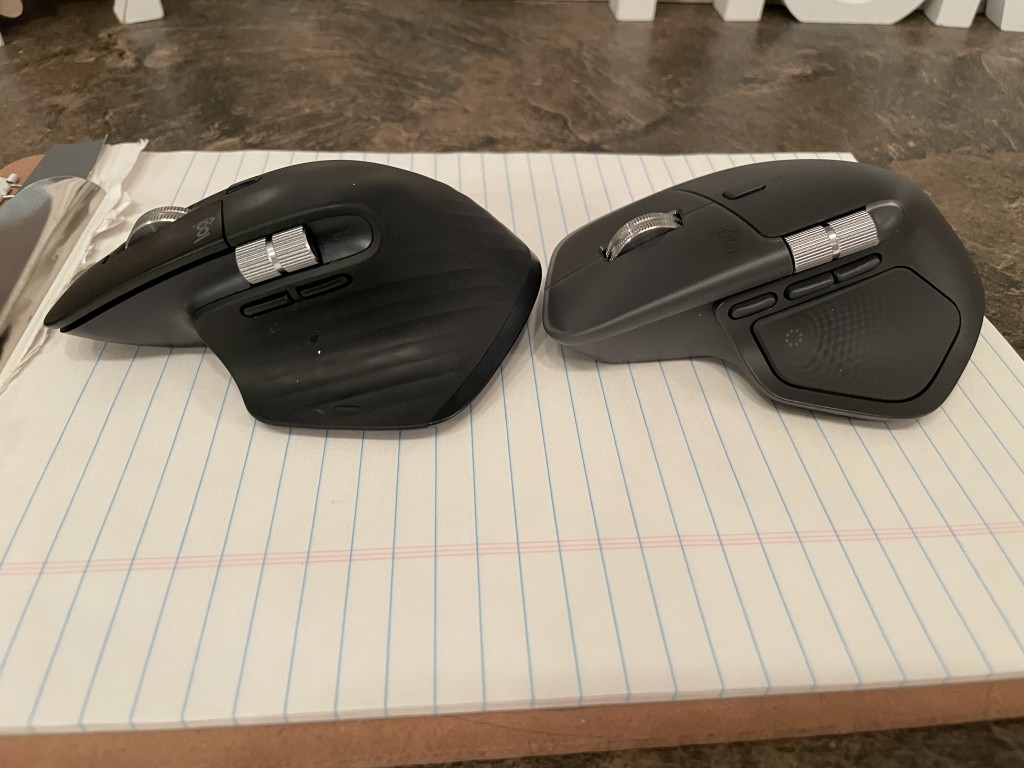
- I like the thumb wheel better. It sits closer to the tip of my thumb, making it more comfortable to use.
- Has an extra programmable gesture button in front of the forward button, which was a compelling reason to upgrade.
- The haptic feedback (vibration) is neat, but not really useful. The only time I notice it is when waking the mouse and using the Actions Ring. Right now very few apps make use of it, but that may change in the future.
- Screws to take it apart do not require removing the feet pads, like the 3s.
- Uses 6 phillips screws, which is nice. The 3s uses 5 phillips screws and 1 torx screw, which was annoying as I had to hunt down a torx screwdriver.
- Feels very similar to the MX Master 3s in terms of shape, size, and button layout, and uses the same Logi Options+ app, so upgrading felt smooth.
❌ MX Master 4 Cons:
- It feels quite a bit heavier than the 3s.
The specs say it’s only 9 grams heavier (150g vs 141g), but it feels like more.
- I was getting wrist pain a couple years back, and the 3s alleviated that for nearly 2 years. After using the 4 for a little over a week, the wrist pain returned.
- The thumb button is triggered by pressing down or in, so I often press it in by accident when adjusting the mouse new position on my desk, such as when changing my sitting position.
- In the 3s, you have to press the thumb button down, allowing you to easily pick up the mouse (by squeezing your thumb in) without accidentally pressing the button.
- The 4 is both heavier and smoother than the 3s. Even with the textured bumps on the thumb button, it’s quite slippery, making the thumb slide when picking it up and forcing you to grip it tighter, leading to accidental presses.
- I found this mentioned in several other online reviews as well, so I know it’s not just me.
- I change the thumb button to media controls (the default action is the Actions Ring), so more than once I accidentally pressed the thumb button while adjusting the mouse position on my desk and started playing music while on a video call (embarrassing! 🫠).
- The gesture button is so far forward it’s a bit hard to reach with my thumb.
- It’s not a huge issue, but I noticed myself having to consciously think about reaching for it. That could change and become muscle memory over time though.
- The scroll wheel button to switch between ratchet and free-spin modes makes a noticeable click sound, where it is silent on the 3s. This doesn’t really bother me though; just something I noticed.
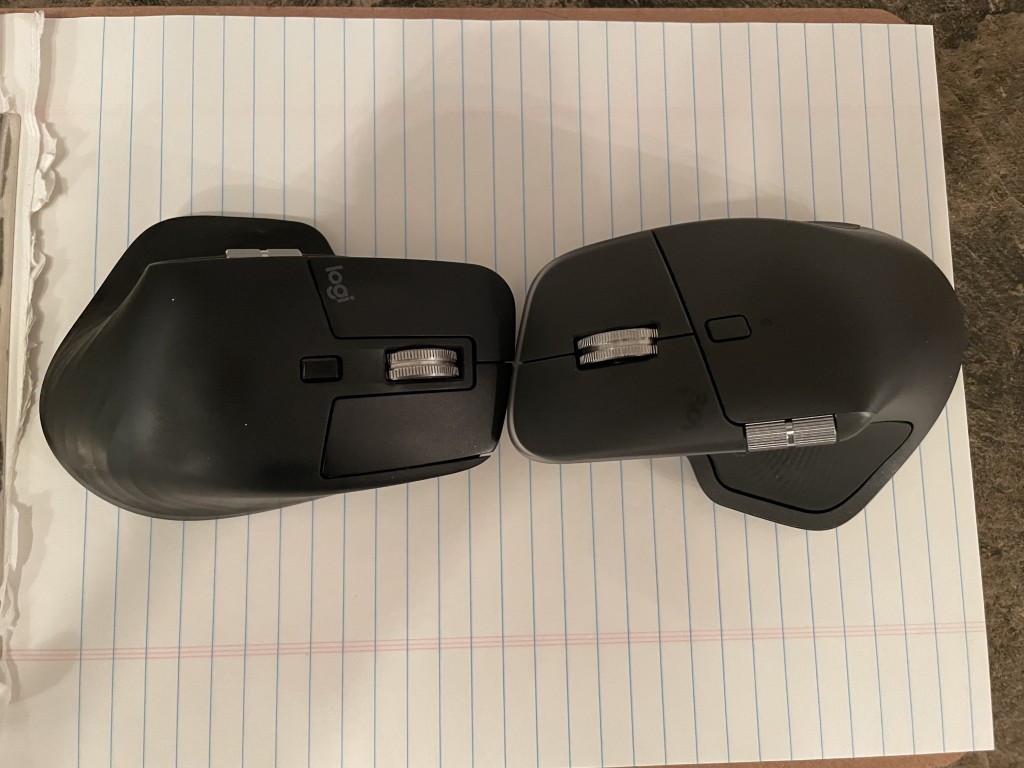
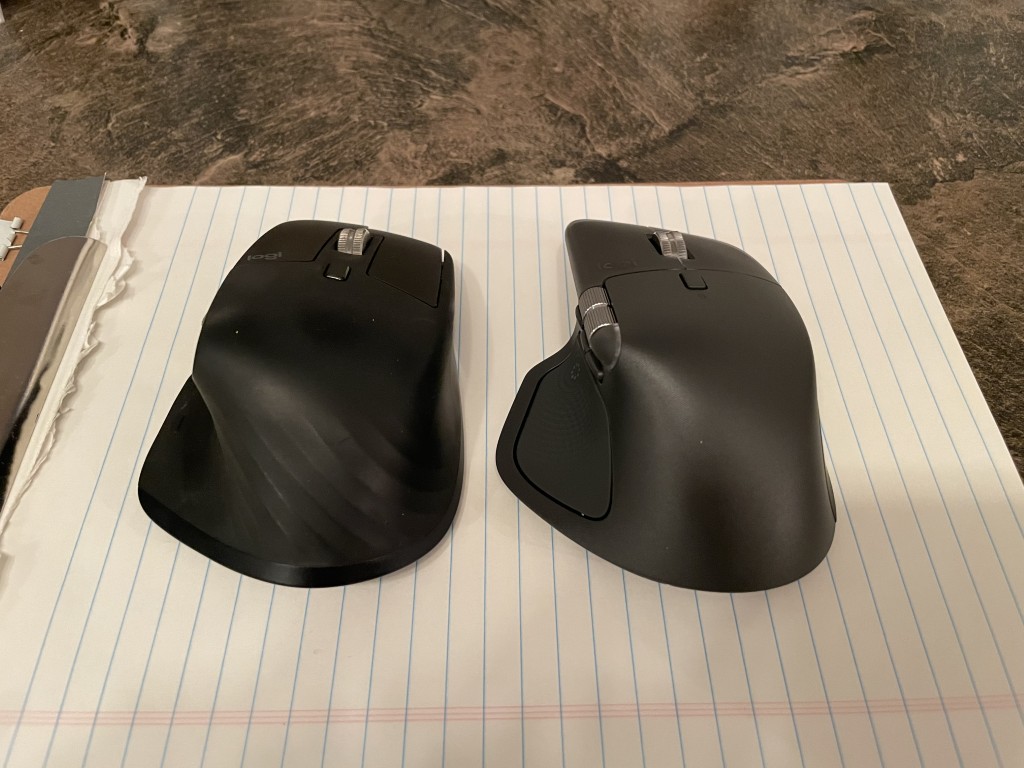
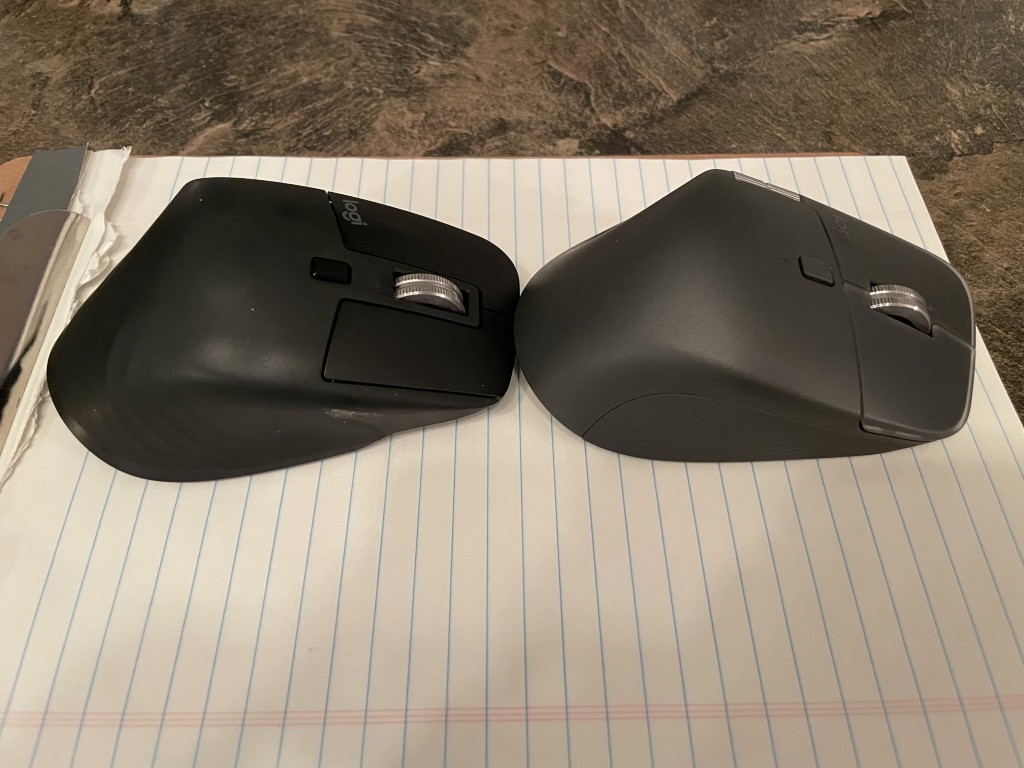
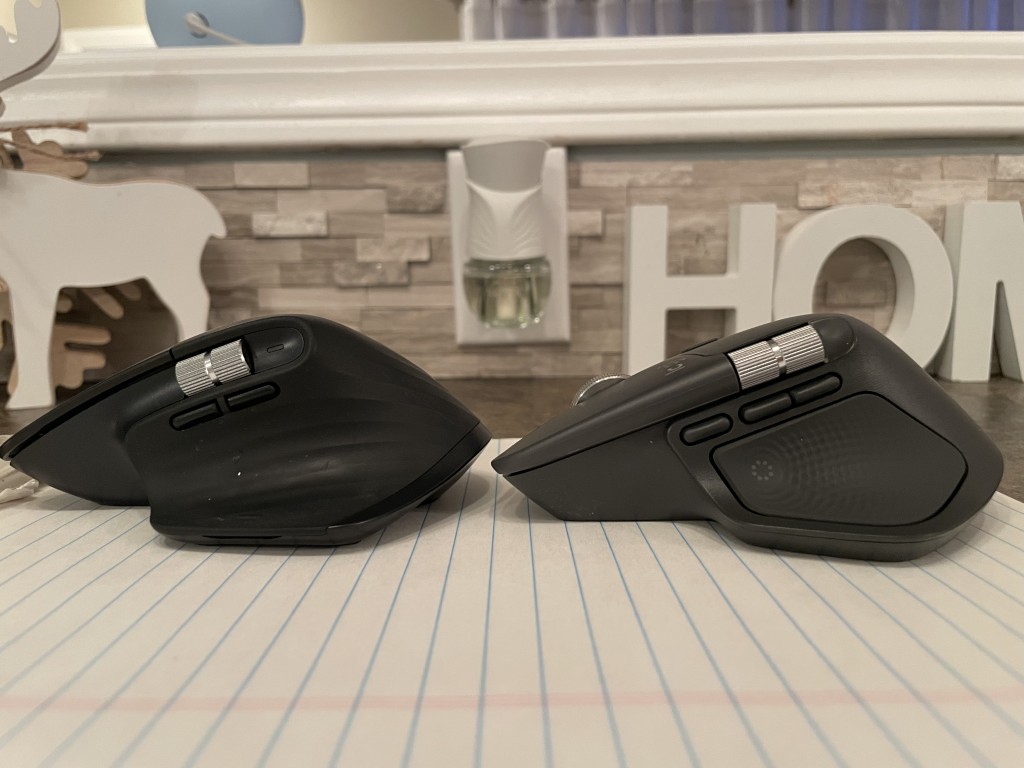
The feel of the MX 4 in my hand is very similar to the 3s. The 3s is a bit grippier due to the rubberized surface, while the MX 4 has a smoother plastic finish. I didn’t mind the feel, but considering the MX 4 is heavier, it could have benefitted from the grippier surface. The shape is nearly identical, with only very minor differences.
If I didn’t feel them side-by-side, it would be hard to tell which is which, aside from the weight difference and the feel of the thumb button. If you like the feel of the MX 3s, you’ll likely like the MX 4 as well.
I’ll note that I use Bluetooth for both, so I can’t comment on the performance of the included Logi Bolt USB receiver. I can say though that the 3s uses a USB-A port, while the 4 uses USB-C, so you may need to consider how many open ports you have.
Also, while I have used both mice for video games, I don’t play competitive or fast-paced games where low millisecond response times make a difference. Both mice perform completely fine for my casual gaming needs. Others have commented that if you need high polling rates, neither of these mice are ideal and you should invest in a proper gaming mouse.
Here’s a few pics to visually compare the two, with the 3s being the black one (bottom/left) and the 4 the graphite (grey) one:
Conclusion
While I quite liked the MX Master 4, especially for the extra programmable button, the wrist pain due to increased weight and accidental thumb button presses were a deal-breaker for me.
I ended up returning my MX Master 4 and will likely be ordering another 3s if the click issues return. If I was still in my 20s and hadn’t developed wrist pain, I likely would have kept the MX 4.
If Logitech releases a followup version that’s a bit lighter and addresses the accidental thumb button presses, I would try it out again.
I don’t often do product reviews or comparisons, so if you enjoyed this leave a comment and let me know!
Comments
Gilles
Thanks for this review. Just what I needed. I’ll stick with my 3s and pass one the 4. :-) I’ve not had the flacky button issues (I’ve had my 3s for 13 months and use it extensively, every day).
SomeGermanDudeOnline
This was the most helpful guide to this subject i could find online, there is so much ai bull shit out there
Jun
Great review. Thank you. I’m in my 40s and can relate. I tried out the 4 in store and came to the same conclusion: the 3s is more comfortable to use and the 4 feels like my wrist pain will return.
Derek
Thanks for writing up your thoughts. I’m on the same journey – I’ve got the 3S left-click issue, I wasn’t able to fix it by opening it up. I love that the 3S picks up easily from just holding it with my thumb and pinky, and I don’t enjoy the idea that the 4 makes that difficult due to weight and smoothness, so it sounds like another 3S for me.
Will
Very informative! Thanks. Going with the 3s in 2026.
Leave a Comment
Your email address will not be published. Required fields are marked *