
Easily capture terminal output from users you help remotely
When helping others troubleshoot issues with their PC, you often need to see the output of commands they run. The easiest way to do this is to synchronously video call and screen share, but that’s not always possible.
Below are some alternative asynchronous options for seeing the output of commands they run.
Print Screen
An easy option is to use the PrtSc (or Print Screen) key to capture the whole screen, or Alt + PrtSc to capture just the active window.
This will copy the screenshot to their clipboard, which they can then paste into a Slack or Teams message or email.
A screenshot is nice and easy, unless the entire output does not fit nicely in a single image, or if you want to be able to copy and paste the output yourself.
Terminal command options
To get the output of a command, you can ask them to run the command and copy the output to the clipboard.
Manually copying the output is not always easy though, as many terminals use block selection which is unintuitive and makes it hard to copy the entire output, especially if the output is long and requires scrolling.
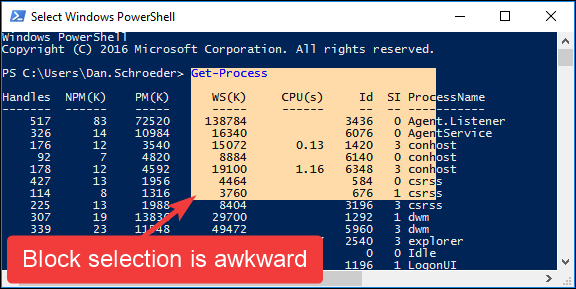
Instead, we can simply adjust the command they are running to automatically copy the output to the clipboard or save it to a file, which they can then send to you via Slack, Teams, email, etc.
Capture command output to the clipboard
Simply append | clip to the end of the command to copy the output to the clipboard, preserving the formatting.
For example, instead of just running:
Get-Process
They can run:
Get-Process | clip
This works for the output of any command or executable, not just PowerShell commands. For example:
dsregcmd /status | clip
This works in both PowerShell and the old-school Command Prompt.
In PowerShell, clip is the alias for Set-Clipboard, which is a built-in PowerShell cmdlet that copies input to the clipboard.
There is also a clip.exe executable too, so if you are in WSL or Git Bash, you can use clip.exe to copy the output to the Windows clipboard.
e.g.
ps | clip.exe
clip.exe will even work in PowerShell and Command Prompt, so you can always use it in place of clip if you like.
A downside to this method is that the output is not visible in the terminal; it is only copied to the clipboard.
Capture command output to a file
You can use the >> operator to redirect the output of a command to a file.
e.g.
Get-Process >> C:\temp\output.txt
In PowerShell, the >> operator is an alias for Out-File, which is a built-in PowerShell cmdlet that writes output to a text file.
e.g.
Get-Process | Out-File -FilePath C:\temp\output.txt -Append
The >> operator works in other shells too, like Command Prompt and Bash, so it’s a good one to know.
The >> operator will append the output to the file if it already exists, while using just > will overwrite the file if it already exists.
Using >> allows you to run multiple commands and capture all of the output to the same file.
A downside of this approach is the output is not written to the terminal; it is only written to the file.
Capture command output to both the terminal and a file
We can use Tee to see the output in the terminal and save it to a file.
e.g.
Get-Process | Tee C:\temp\output.txt
This will write the output to both the terminal and the file.
In PowerShell, Tee is an alias for Tee-Object.
The full command syntax could look like this:
Get-Process | Tee-Object -FilePath C:\temp\output.txt
tee exists in other shells as well like Bash, so using the shorthand syntax will work pretty much everywhere.
e.g.
ps | tee output.txt
Start a transcript to capture all output from the terminal session
PowerShell has a built-in transcript feature that can capture all output from a terminal session and save it to a file. This is great if you want to capture the output of multiple commands.
To start a transcript, simply run the Start-Transcript cmdlet and specify the path to the file where you want to save the transcript.
Then run the various commands you want to capture the output of.
When you’re done, run the Stop-Transcript cmdlet to stop the transcript and save the file.
Start-Transcript -Path C:\temp\transcript.txt

# Run various commands here
Get-Process
Get-Service
dsregcmd /status

Stop-Transcript
The transcript text file can then be sent to you via Slack, Teams, email, etc.
This method only works for PowerShell.
Conclusion
While screen sharing is often the best way to interactively help someone and see the output of commands in real time, it’s not always possible. Taking screenshots is easy and effective, except in the case of long outputs that don’t fit on a single screen, or when you want to be able to copy and paste the output yourself.
Luckily, there are several easy options for capturing terminal output to a file or the clipboard, which can then be shared via Slack, Teams, email, etc.
I hope you’ve found this post informative and it helps you when working with others remotely!
Happy helping and troubleshooting! 😊
Leave a Comment
Your email address will not be published. Required fields are marked *